
Most marketing automation projects die on a whiteboard. Someone draws a flowchart, everyone nods, and nothing gets built. The diagram was made to be presented, and nobody could build from it.
This article is about the other kind. You’ll see how to write a decision rule that leaves nothing to guess, how to draw a diagram that maps onto your platform’s logic, and where AI belongs in a workflow without making it something you can’t debug.
If you run the business yourself, the builder is usually you, a few weeks later, with no memory of what “engaged” was supposed to mean. Write for that person. If you’re still choosing which workflow to build, start with my 10 marketing automation workflow examples and come back.
1. Why most workflow diagrams never get built
The gap between designed and built usually comes down to one thing. The diagram describes intent, and a platform needs behavior.
A box that says “Send nurture email” is intent. Behavior reads like this: “If lead_score is 40 or more, AND the last activity was within the past 14 days, AND the contact is not a customer, send email N-03 at 9:00 in the contact’s time zone.” Only the second version can be built without another conversation.
Three failures show up repeatedly.
The first is an ambiguous condition. “If the user is engaged” means nothing to a platform. Engaged by what measure, over what period, past what threshold?
The second is a missing else branch. Every decision needs a defined path for “no”. In HubSpot, a contact that reaches a branch with no actions simply runs to the end of the workflow (HubSpot). Nothing is sent and no task is created. The action log records it, but nothing alerts you.
The third is no re-entry rule. Can a contact enter this workflow more than once? Leave the rule unwritten and you get duplicate sends, gaps, or both.
Platforms don’t agree on the default. HubSpot enrolls a contact once unless you switch re-enrollment on (HubSpot). ActiveCampaign lets a contact enter any number of times unless you change it (ActiveCampaign). Klaviyo depends on the trigger: list and segment flows default to no re-entry, and flows triggered by an event such as an order allow it (Klaviyo).
Fix these three and the diagram becomes buildable. The same pattern runs through my own build library. Of 50 client builds I’ve documented, 26 were wins, and in 24 of those the result came from a check, a permission, a written file or a clear decision about who decides. I go through that in how to turn an SOP into an AI agent.
2. A decision rule has four parts
Write all four, every time.
The trigger comes first. What event or change starts the evaluation? Name the source and the field. “Form submitted” isn’t enough. “Form submitted: pricing-guide on /pricing/” is.
Then the qualifying conditions. What must be true about the contact at that moment? Write each one as a statement that is either true or false. Use AND and OR explicitly, and put brackets around every OR. Don’t nest more than two levels deep, because that is where builds go wrong.
Then the action. Name the asset, the channel and the timing. If a person is involved, say who gets the task and when it’s due.
Last, the exit or the wait. Does the contact wait for an event, move straight on, or leave the workflow? Every wait needs a timeout and a path for when it runs out.
Here is a full rule for a small service business that offers a pricing guide:
TRIGGER
  Form submitted: "pricing-guide" on /pricing/

QUALIFYING CONDITIONS (all must be true)
  contact.email_opt_in = true
  AND contact.is_customer = false
  AND contact.in_active_sequence = false
  AND (contact.country = "US" OR contact.country = "CA")

ACTION
  Start sequence "pricing-guide-nurture-v3" at email PG-01
  Send time: next business day, 10:00, contact's time zone

EXIT OR WAIT
  Wait for: link clicked in PG-01 OR call booked
  Timeout: 7 days
  On call booked: exit, start the "call-confirmed" sequence
  On link clicked: continue to PG-02
  On timeout: exit to the "low-intent follow-up" workflow

IF THE CONDITIONS ARE FALSE
  Send the guide only, add tag "pricing-guide-no-nurture", exit

RE-ENTRY
  Once per contact. A second download sends the guide and nothing else.
You can build from this. And when a contact gets the wrong email, or none, you can trace why.
One line in it depends on your data. HubSpot can time a send to the contact’s time zone, but if the contact has no time zone on record it falls back to the account’s (HubSpot). List the fields a rule depends on, and check they are filled in.
3. Diagram conventions that map onto platform logic
You don’t need a special tool. You need the same conventions every time. This small set stays close to standard flowchart shapes, and it works whether you build in HubSpot, ActiveCampaign, Klaviyo or Kit.
Five shapes are enough
The more shapes you add, the more room there is for confusion.
| Shape | Means | Example |
|---|---|---|
| Rounded pill | Start or end | “Call marked Completed” |
| Rectangle | An action | Send an email, create a task, update a field |
| Diamond | A decision | “Proposal sent?” |
| Circle with clock hands | A wait | “Wait 48 hours” |
| Parallelogram | A call to another system | Update the CRM, fire a webhook |
Label every arrow with the condition that sends a contact down it. “Yes” and “No” aren’t enough on a diamond. Restate the condition in short form, such as “score >= 40” or “no click in 3 days”. The diagram in section 5 uses all of this.
Use swim lanes when more than one system is involved
If the workflow touches your email platform, your CRM and a spreadsheet, give each system its own horizontal lane. An action sits in the lane of the system that performs it. An arrow that crosses lanes is a data handoff, so label it with the field name and the direction.
This shows every integration point at a glance. It also makes you decide which system owns each field before you build.
Version every diagram
Name each one with a version and a date, such as lead-nurture-v2-2026-07-25.pdf. When the workflow changes, save a new version and keep the old one. When you debug a live workflow six months from now, you’ll need to know what the logic was on the day the contact entered.
4. Where AI belongs in a workflow
AI earns a place in three spots. Outside them, it tends to add complexity without much return.
Scoring at the decision node
A fixed threshold only counts points. A model can read more: what the person wrote, how recently they were active, what they’ve looked at. It writes a score or a label, and the diamond in your diagram stays where it is. My lead qualification workflow works this way, with three separate scores for fit, intent and timing, each from 0 to 3.
The practical requirement is that the model’s output lands in a field on the contact record that your platform can read. If the score lives in a chat window and never gets written back, the workflow can’t see it.
Choosing content inside the action
Instead of branching into 12 email paths for 12 segments, a model picks or assembles the variant at send time from the contact’s attributes. The workflow stays linear, and the personalization happens inside one action box.
This only works with a content library that has clean labels, and a reliable way to pass the contact’s attributes to the model. Without both, you send text nobody approved, at volume.
Watching the numbers at each step
A model that watches opens, clicks and conversions at each step can flag a branch that falls below its baseline before you’d notice. It monitors, and a person decides what to change. A weekly look at the step-level numbers in your platform will catch most of the same problems. How to tell if your AI agent is working covers which numbers to keep.
Keep AI out of the path for unsubscribes, consent and billing. Those need fixed rules you can audit. When I convert a procedure, I sort every decision into judgment, fact or limit, and these are limits: a step that passes or fails with no opinion.
5. A template to copy: the follow-up after a sales call
The days after a sales call are when a decision gets made or drifts. This is the structure for a consultant or a small agency where the owner takes the calls:
START
  Call marked "Completed" in the CRM
  The outcome field is required: Strong interest / Needs more info / Not a fit

BRANCH 1: outcome = "Strong interest"
  Action: create a task for the owner, "Send proposal", due next business day
  Action: send email "call-recap-strong" within 1 hour
  Wait: 48 hours
  Decision: proposal_sent = true?
    Yes: exit to the "proposal-sent" workflow
    No:  create task "Proposal overdue", notify the owner, exit

BRANCH 2: outcome = "Needs more info"
  Action: send email "call-recap-resources" within 1 hour
  Wait: 3 days, or until a link in that email is clicked
  Decision: link clicked?
    Yes: create task "Reply personally", exit
    No:  add to the "14-day follow-up" sequence, exit

BRANCH 3: outcome = "Not a fit"
  Action: set status to "Disqualified"
  Action: record the reason (required field)
  Action: exclude from sales sequences
  Exit

BRANCH 4: outcome is empty after 24 hours
  Action: create task "Fill in the call outcome"
  Exit

RE-ENTRY
  Once per completed call.
Here is the same workflow drawn with the conventions from section 3:
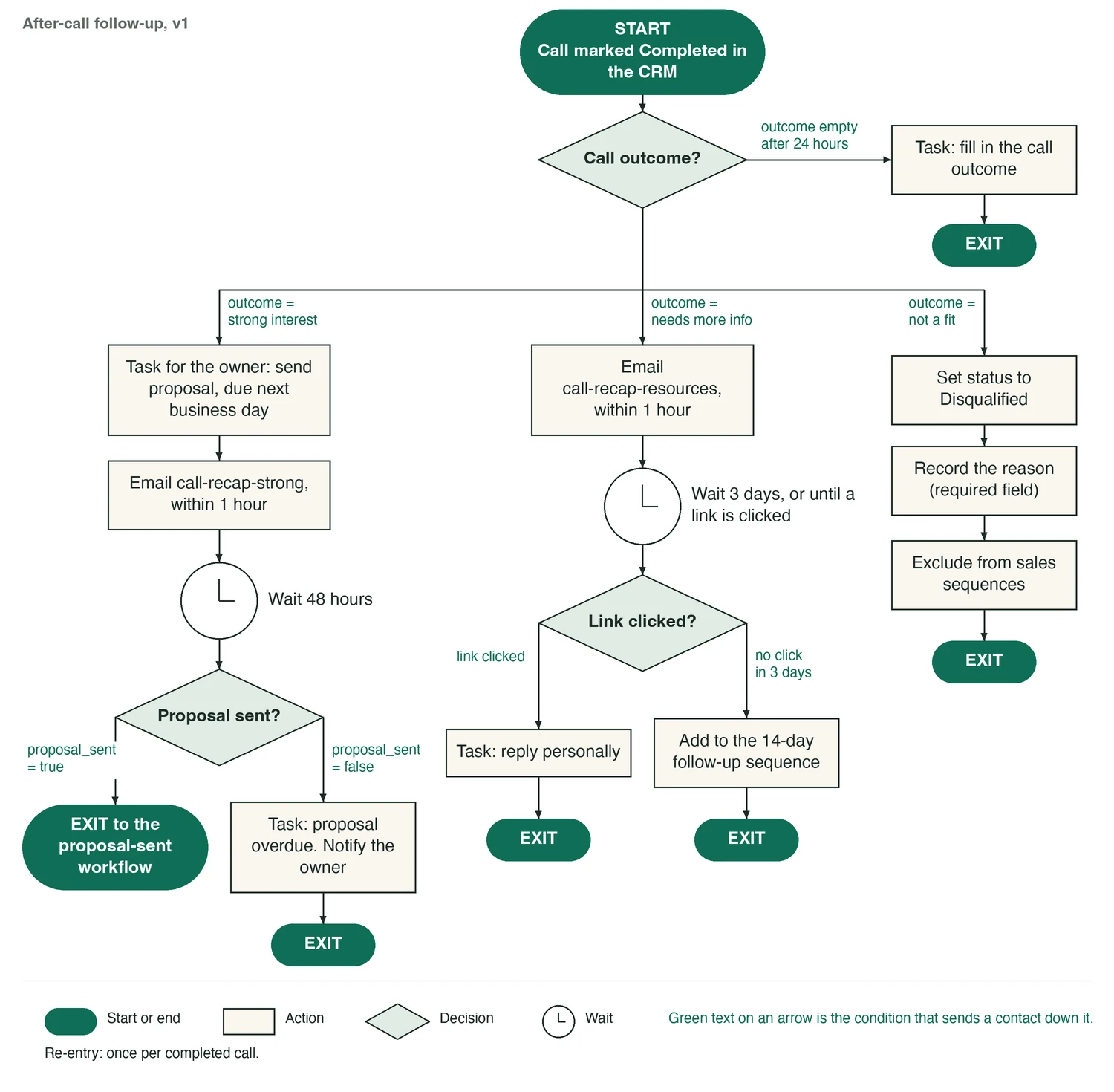
Every branch ends in an exit. Every action names its asset. Every wait has a timeout and a fallback. The fourth branch covers the call nobody logged, which the first three would miss.
I publish the workflows I build, with their rules written out like this, in Bionic Business.
6. The checklist before you build
Run through this before you open the platform:
- Every diamond has a path for yes and a path for no, or a named path for every option.
- Every arrow carries the condition that activates it.
- Every action names the asset, the channel, the timing and who gets any task.
- Re-entry is written down: can a contact come back in, and after what?
- Every path ends in an exit, including the timeout on every wait.
- The fields the workflow depends on are listed, and you’ve checked they are filled in.
- Suppression and opt-out rules are explicit.
- The diagram has a version and a date.
If you can’t tick every line, the workflow isn’t ready to build. Finding that out now is cheaper than finding it out from a customer.
If your workflow exists only as a paragraph of notes, the free SOP to agent skill for Claude rewrites it into rows with a rule for each decision and lists the questions only you can answer. And if you’d rather have a workflow specified and built with you, that is part of my advisory work: work with me.
FAQs
What’s the most common reason marketing automation workflows don’t get built?
The diagram describes intent where the platform needs behavior. A box labeled “send nurture email” or “check if engaged” can’t be built without more decisions. When the diagram leaves out field names, thresholds, timing and fallback paths, the builder has to guess or stop.
How detailed should a marketing automation workflow diagram be?
Detailed enough that someone new to the project could build it without asking a question. Every decision has labeled branches, every action names its asset and timing, and every wait has a timeout and a fallback. If you’re unsure, run it through the checklist in section 6.
Where does AI add the most value in a marketing automation workflow?
In three places: giving a decision a better score or label, choosing content inside an action, and watching each step’s numbers for a drop. It adds the most risk in the path for consent, unsubscribes and billing, so keep it out of those.
How do you handle re-entry in a marketing automation workflow?
Write the rule down before you build. Decide whether a contact can enter more than once, and under what condition: a changed field, a new trigger event or a minimum delay. Then check your platform’s default, because they differ. HubSpot enrolls once unless you allow re-enrollment, and ActiveCampaign allows any number of entries unless you restrict it.
What’s the right tool for drawing marketing automation workflow diagrams?
The conventions matter more than the tool. Lucidchart, Miro, FigJam and even Google Slides work if you use the same few shapes and label every arrow. Version every diagram with a number and a date, and keep the old versions.
How do swim lanes help in a multi-system workflow diagram?
They show where data crosses from one system to another. With a lane for your email platform, one for your CRM and one for any other source, every handoff is an arrow you have to label with a field name. That makes you settle field mapping before you build.
How do you know when a workflow is performing poorly?
Look at each step as well as the workflow as a whole. A branch that converts far below what its entry volume suggests is the clearest signal. Opens, clicks and goal completions at each step show where contacts stop. A model can flag the drop for you, and a weekly review of the same numbers will catch most problems too.
What to do on Monday
Pick one workflow you’ve drawn and never built. Rewrite its first decision as a four-part rule, add the path for “no”, and write the re-entry rule. If you can’t fill in a field name or a threshold, you’ve found what was stopping it.